
How to Stop Your Phone From Using Data in the Background (Android and iPhone)

Last updated: 15 October 2026 · By Naijatipsland Editorial Team · Editorial policy
Many people buy a data bundle and watch it vanish within days without doing much. Often the cause is not what you are doing on your phone but what your phone is doing by itself: apps refreshing, updating, backing up and downloading media in the background. With data plans costing real money, switching these off is the quickest way to make a bundle last longer.
The steps below follow Google’s Data Saver instructions for Android, Apple’s Low Data Mode guide for iPhone, and general Android guides for app updates and messaging apps. Menu names differ slightly between phone brands and software versions, so use the search box in Settings if you cannot find an option.
The short answer
- Android: turn on Data Saver (Settings, Network and internet, Data Saver). It lets most apps get background data only over Wi-Fi.
- iPhone: turn on Low Data Mode (Settings, Mobile Data, Mobile Data Options). It stops network use when you are not actively using an app and turns off Background App Refresh, automatic downloads and backups.
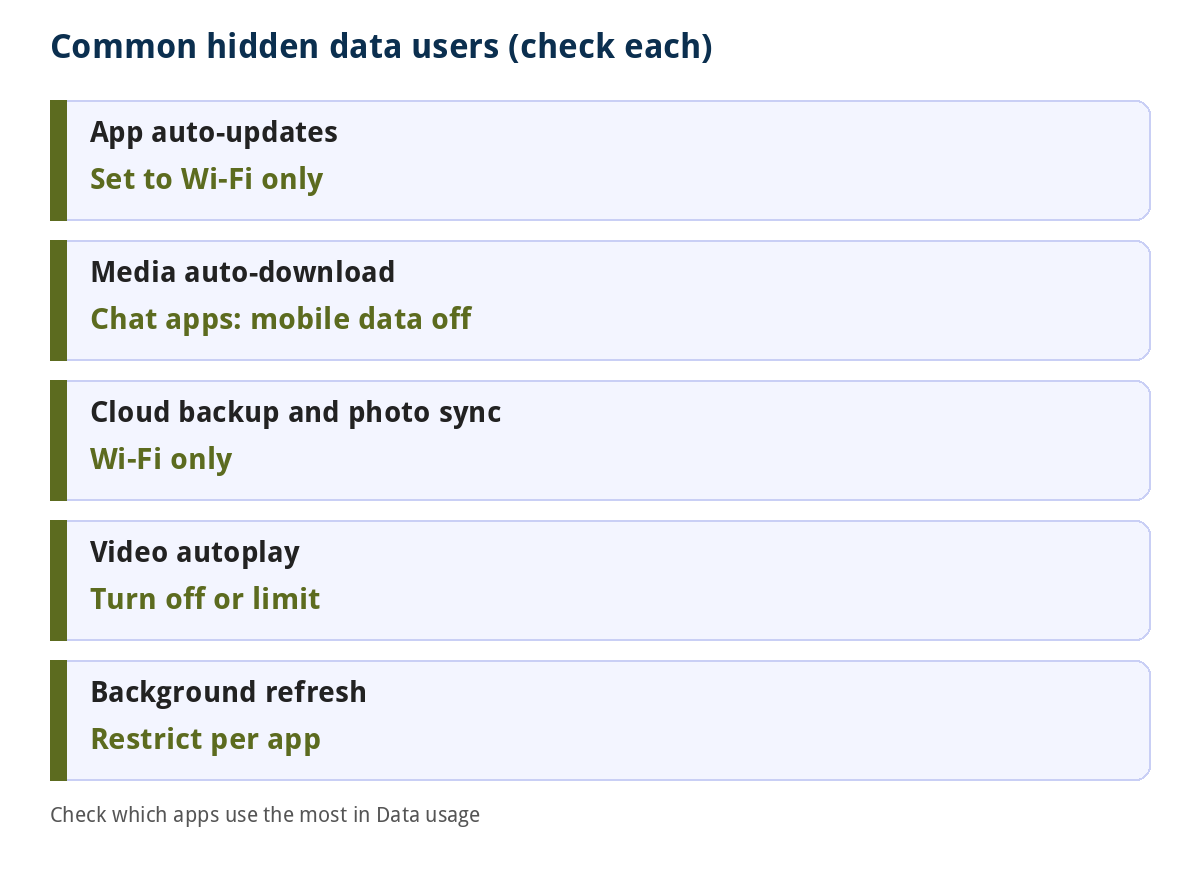
- Set app updates to Wi-Fi only and turn off media auto-download on mobile data in chat apps.
- Check which apps use the most data and restrict those.
Step 1: see what is using your data
On many Android phones, go to Settings, Network and internet, SIMs, then App data usage (the path varies by phone, and you may find it under Data usage). Tap an app to see how much it used in the foreground and the background. An app with high background use that you rarely open is a good candidate to restrict.
You can also check your remaining bundle quickly with *323# (see our guide to USSD codes) and compare it with what your phone says.
Step 2: Android settings
Turn on Data Saver
- Open Settings.
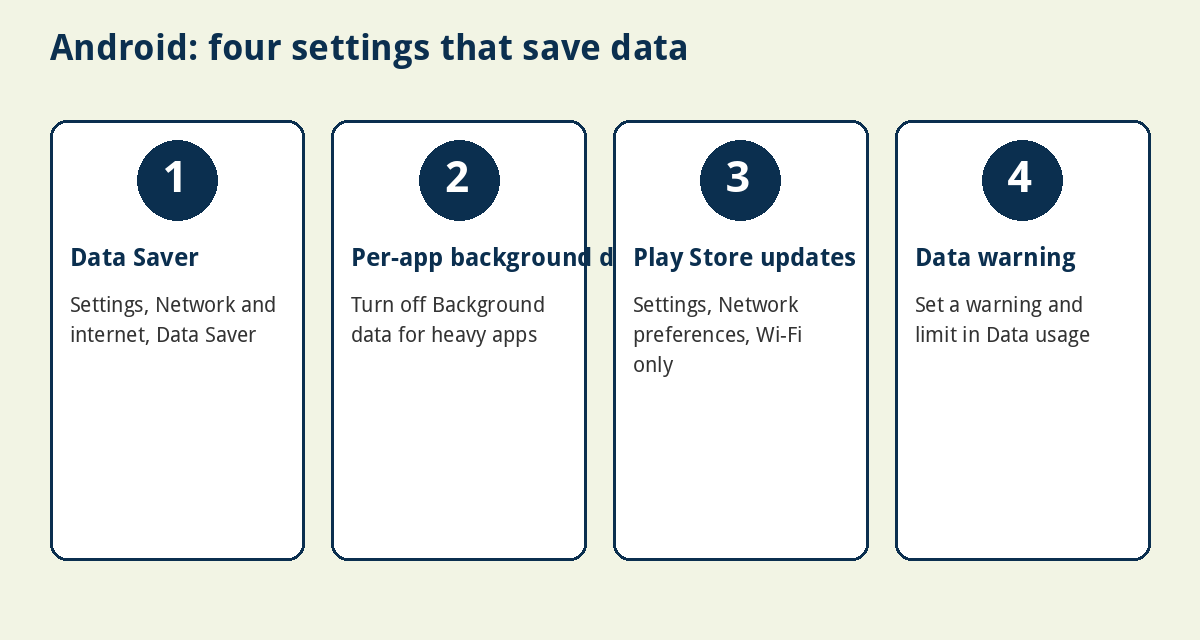
- Go to Network and internet, then Data Saver.
- Turn it on. A Data Saver icon appears in the status bar.
With Data Saver on, most apps and services get background data only over Wi-Fi. Apps you are actively using can still use mobile data. This needs Android 8.0 or later.
Let important apps through
Open Data Saver, then Unrestricted data, and switch on the apps that must work in the background on mobile data, such as a messaging app you rely on for notifications.
Restrict one app
Open the app’s data screen (through App data usage, or Settings, Apps, the app, then Mobile data and Wi-Fi) and turn off Background data. Some phones also offer a Disable data usage option that blocks the app’s data fully.
Set a data warning
Go to Settings, Network and internet, Data usage, then Data warning and limit. Enter your billing cycle date and set a warning near the size of your bundle.
Stop app updates on mobile data
- Open the Google Play Store and tap your profile icon.
- Tap Settings, then Network preferences.
- Under Auto-update apps, choose Over Wi-Fi only (or Don’t auto-update apps).
This setting applies to all apps, not one at a time.
Step 3: iPhone settings
Turn on Low Data Mode
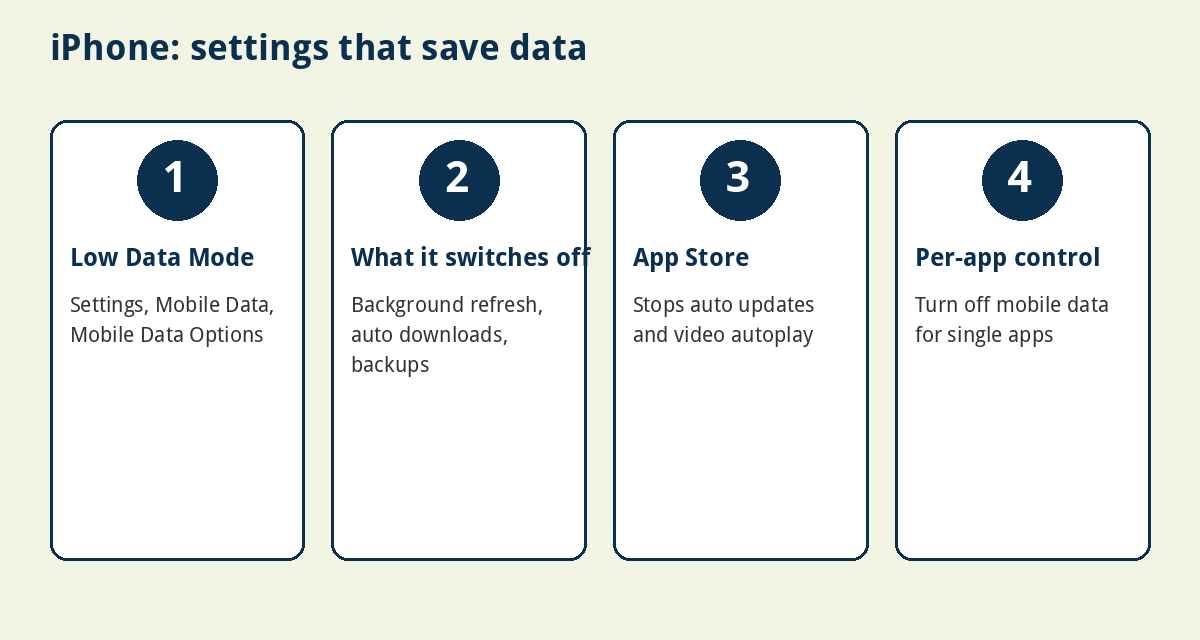
- 4G (LTE) plans: Settings, Mobile Data, Mobile Data Options, then turn on Low Data Mode.
- 5G plans: Settings, Mobile Data, Mobile Data Options, Data Mode, then Low Data Mode.
- Dual SIM: Settings, Mobile Data, tap the number you want, then turn on Low Data Mode.
- Wi-Fi: Settings, Wi-Fi, tap the info button next to your network and turn on Low Data Mode if you share a limited connection.
Apple says Low Data Mode stops network use when you are not actively using an app, turns off Background App Refresh, lowers streaming quality, and turns off automatic downloads and backups. In the App Store it stops video autoplay and automatic updates, in Podcasts it downloads episodes only on Wi-Fi, in News it stops prefetching and in iCloud it pauses automatic backups and photo updates. FaceTime uses a lower video bitrate.
Turn off mobile data for single apps
In the Mobile Data settings, you can switch mobile data off for individual apps so they only use Wi-Fi. Apple’s guide to cellular data settings lists this option, and the exact wording may vary with your iPhone’s software.
Stop automatic updates
In Settings, open the App Store and check the Mobile Data options for automatic downloads and updates.
Step 4: chat apps, social media and video
- WhatsApp: open Settings, then Storage and data (Data and storage usage on some versions). Under media auto-download, clear the options for mobile data. You can also turn on low data use for calls.
- Telegram and Messenger: look for Storage or Data and storage settings and set the controls separately for mobile data, Wi-Fi and roaming.
- YouTube: turn on Limit mobile data usage in General settings.
- Instagram: under Cellular data use, enable Use less data.
- Facebook: set Autoplay to never autoplay videos, and turn on Data Saver in Settings and privacy.
Step 5: backups and photo sync
Cloud backup and photo sync can quietly upload large files. On Android, check Settings, Google, All services, then Backup and restore and review what is backed up. On iPhone, Low Data Mode already pauses iCloud backups and photo updates. In your photo app, set uploads to Wi-Fi only.
Step 6: other habits that save data
- Download maps, music and videos on Wi-Fi.
- Close apps you do not need and uninstall ones you never use.
- Lower video quality when you stream.
- Choose the right plan so you are not overpaying per GB. Compare our guides to Airtel data plans and Glo data plans.
- Check that a slow network is not the reason a page keeps reloading. See the fastest network in Nigeria.
Things to watch out for
- Delayed notifications: restricting background data can delay messages from apps that are not allowed to run in the background. Add important apps to the unrestricted list.
- Slow data balance: if your balance still drops fast, an app may be misbehaving. Check the usage screen.
- Fake data-saver apps: install only well-known apps from official stores. Many apps do not need extra permissions to save data.
- Auto-renewal: some plans renew by themselves and charge your airtime. Check your network’s settings.
Frequently asked questions
How do I stop apps from using data in the background on Android?
Turn on Data Saver in Settings, Network and internet, Data Saver, or turn off Background data for individual apps in their data usage screen.
How do I stop my iPhone using data in the background?
Turn on Low Data Mode in Settings, Mobile Data, Mobile Data Options. It turns off Background App Refresh, automatic downloads and backups.
Does Data Saver stop all data use?
No. Apps you are using in the foreground can still use mobile data, and apps you add to the unrestricted list keep working in the background.
Why does my data finish so quickly?
The usual causes are app updates, media auto-download, video autoplay, cloud backup and high-quality streaming. Check your usage by app.
Will Data Saver slow my phone?
It does not slow the connection itself. It limits what runs in the background, so some updates and notifications may arrive later.
Bottom line
Turn on Data Saver or Low Data Mode, set app updates and media downloads to Wi-Fi only, and review your usage by app once a month. These few changes often stop the quiet background drain that eats a bundle.
Sources
- Google Pixel Help: Use less mobile data with Data Saver
- Apple Support: Use Low Data Mode on your iPhone and iPad
- MakeTechEasier: How to stop apps from using mobile data on Android
- SamMobile: How to manage automatic downloads on your phone
- Yoke: Monitor and limit data usage
Join the discussion
Have you tried this, or do you have a question we did not answer? 2 readers have already shared their views. Naijatipsland members help each other with real, first-hand experience.









For most people, WhatsApp media auto-download is the silent bundle killer. Every voice note and video in your groups downloads on mobile data unless you turn it off. Which app turned out to be eating your data?
One trade-off to know: restricting background data can delay notifications, so add your important apps to the unrestricted list. After turning on Data Saver or Low Data Mode, how much longer did your bundle last?