
How to Back Up WhatsApp Chats and Move Them to a New Phone (2026): Android, iPhone and Switching Between Them

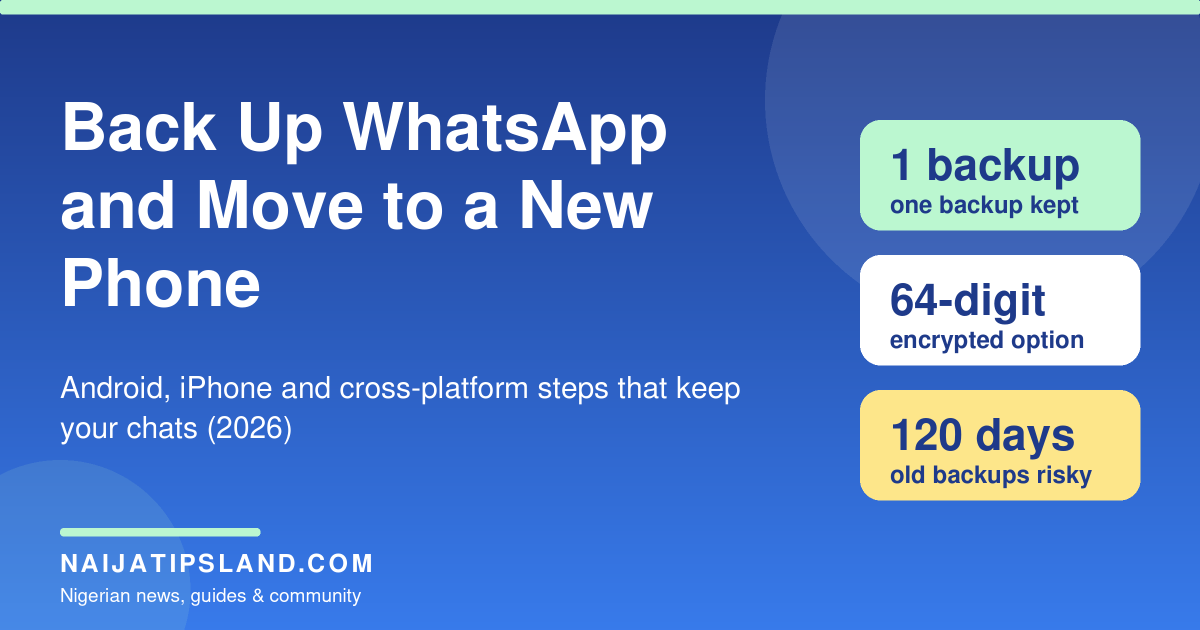
Last updated 12 November 2026. WhatsApp changes its menus from time to time, so if a screen looks different on your phone, follow the on-screen prompts and check WhatsApp’s Help Centre. This guide is for the standard WhatsApp app, not WhatsApp Business.
A new phone is exciting until you open WhatsApp and find it empty. Years of family chats, work groups, voice notes and photos can disappear in a second if you tap the wrong button during setup, and WhatsApp cannot restore them for you because your chat history is not stored on its servers. The good news is that moving your chats is easy when you do the steps in the right order, and it costs nothing.
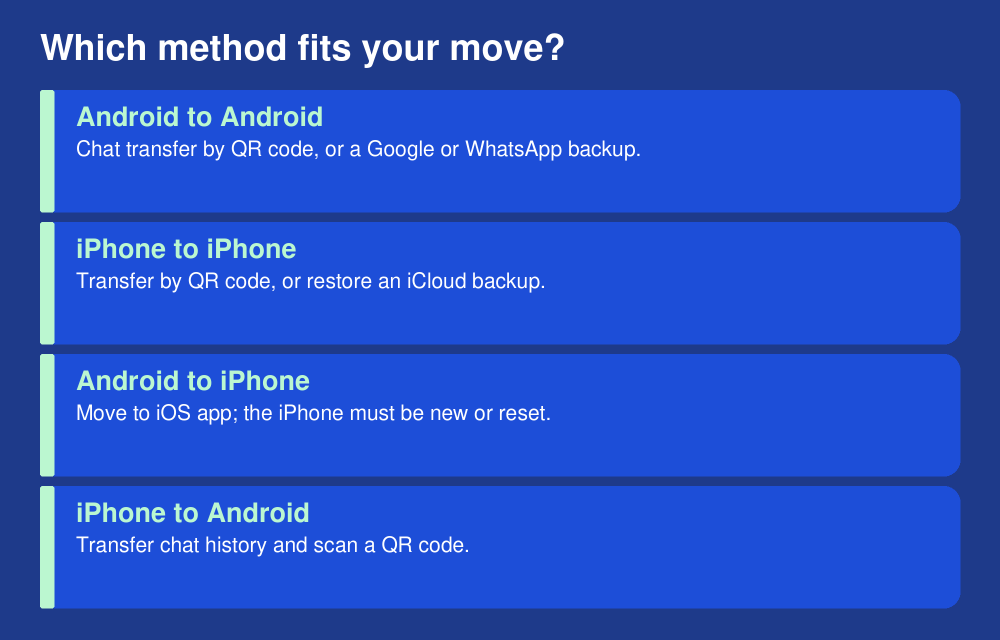
This guide covers every common route in 2026: Android to Android, iPhone to iPhone, Android to iPhone and iPhone to Android. It also explains the backup storage rules that catch people out, how encrypted backups work, how to avoid wasting mobile data, and what to do if your old phone is lost or broken. If you are still choosing a phone, see our guides to the best Android phones under ₦100,000 and the best phones under ₦150,000 and ₦200,000.
The short answer
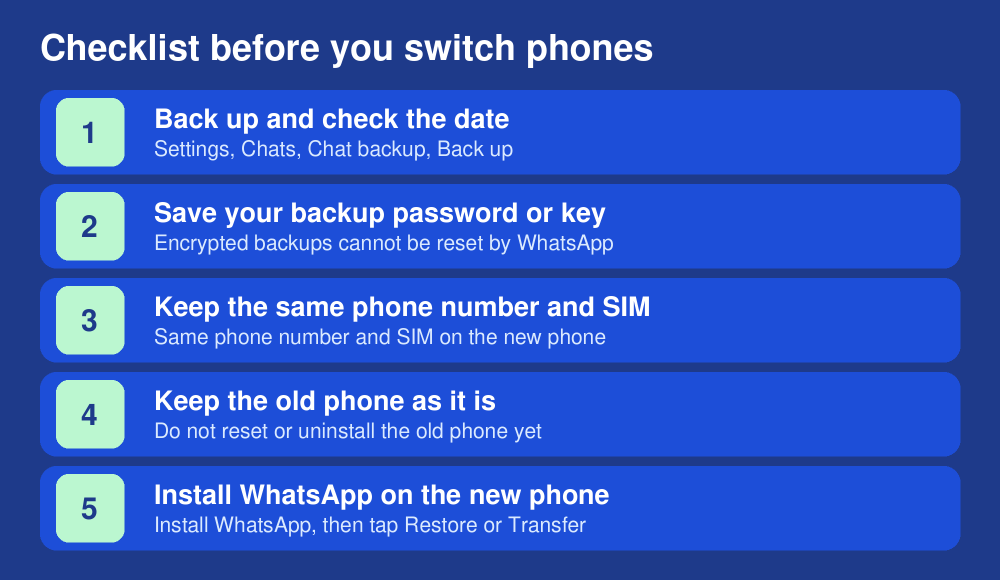
- Back up first. On the old phone go to Settings, then Chats, then Chat backup, and run a backup. Check that the last backup date is today.
- Keep the same phone number. Chats can only move to a phone using the same number. To change number, change it on the old phone first.
- Move chats before you start using WhatsApp on the new phone. Once WhatsApp is active on the new phone you cannot merge old and new chats.
- Do not wipe the old phone until you have checked the new one. A failed transfer does not delete your chats, but a reset or uninstall can.
Before you start: five quick checks
- Your SIM and number. You will need to verify the number on the new phone. If you are moving from a Nigerian SIM to a UK SIM, or the other way, remember that chats will not follow a new number automatically.
- Free space. The old phone needs room to create the backup, and the new phone needs room to restore it. If your phone is almost full, delete large videos and old forwards first.
- A stable connection. Use home or office Wi-Fi for backups. The first backup can be large and can use a lot of mobile data. Our guide on stopping your phone using data in the background shows how to keep data under control.
- Power. Plug both phones into chargers. Transfers and restores take a while on large accounts.
- Your Google or Apple account. You will need to sign in to the same Google Account on a new Android phone, or the same Apple ID on a new iPhone, to restore a cloud backup.
Step 1: Back up your chats
Even if you plan to use a direct transfer, a fresh backup is your safety net.
On Android
Open WhatsApp, go to Settings, tap Chats, then Chat backup. You can back up to WhatsApp cloud storage or to your Google Account, and you can switch between them at any time. To back up manually, tap Back up. You can choose whether to include videos, whether to back up over mobile data and whether to include your status archive. Switch off the mobile data option if you are on a limited bundle, and leave videos out if you do not need them, because video is what makes backups huge.
On iPhone
Open WhatsApp, go to Settings, tap Chats, then Chat Backup, and tap Back Up Now. iPhone backups use iCloud, so make sure iCloud is signed in and has enough free space. If you use WhatsApp’s end-to-end encrypted backup, Apple recommends turning off the separate iCloud backup of WhatsApp data for the best result, so follow the prompts in the app.
Turn on an end-to-end encrypted backup
An encrypted backup locks your chat history so that only you can open it, not Google, Apple or WhatsApp. Go to Settings, Chats, Chat backup, then End-to-end encrypted backup, and choose a passkey, a password or a 64-digit encryption key. Write the password or key down somewhere safe. WhatsApp states that it cannot reset the password or restore the backup for you, and without it your backup cannot be opened. If you forget the password but can still open WhatsApp, you can change it from the same menu by choosing that you forgot it and confirming your identity with your device PIN, passkey or 64-digit key.
Check the backup actually worked
Back in Settings, Chats, Chat backup, WhatsApp shows the time and size of the last backup. If the time is not recent, or the size looks too small, do not move on. Only one backup is kept per phone number, and each new backup replaces the previous one, so there is no older copy to fall back on.
Where your backup is stored, and what it costs
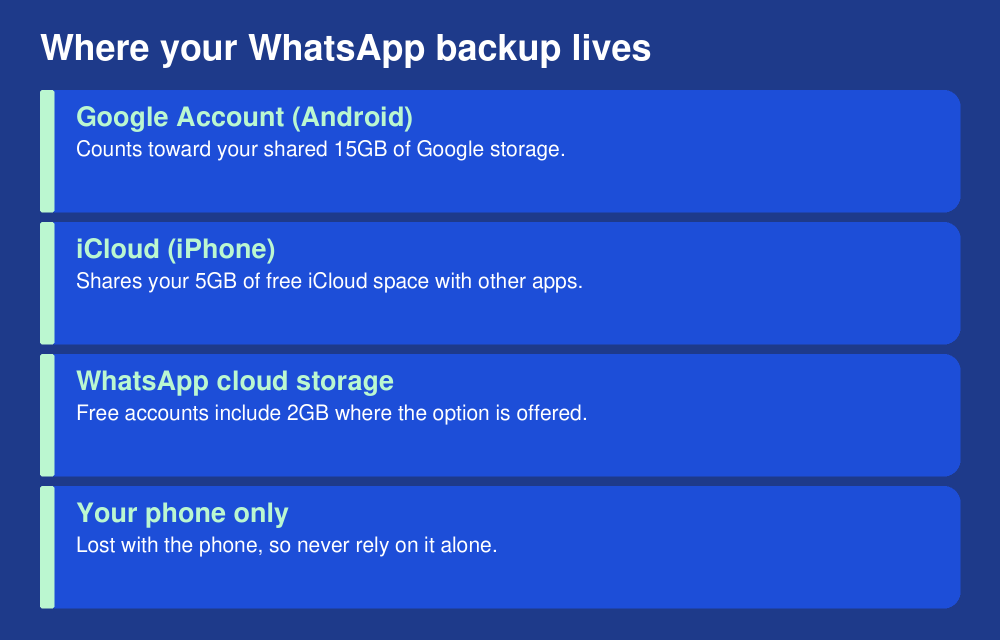
This is where many people are surprised. WhatsApp can store backups in three places, each with its own space:
- Google Account (Android). Backups count towards your Google storage, which is 15GB free and shared with Gmail, Google Drive and Google Photos. Google lists WhatsApp backups on Android among the things that count towards your quota. If your Google storage is full, backups stop until you free space or buy more.
- iCloud (iPhone). Apple gives 5GB free, shared with your other iCloud data, so a large WhatsApp backup may push you into a paid plan.
- WhatsApp cloud storage. WhatsApp’s own option, always end-to-end encrypted. Its help pages say free accounts include 2GB where the option has been offered to you, and it is not available to everyone yet.
Two warnings from WhatsApp’s help pages are worth remembering. Google may automatically delete backups that have not been updated in five months, and if your latest backup is more than 120 days old, restoring may not be possible even if the account is still active. If you rarely open WhatsApp on an old phone, back up again before you hand it down.
Android to Android
You have two good options.
Option 1: Chat transfer (direct, no cloud)
WhatsApp’s chat transfer moves your account, messages and media straight from phone to phone. You need Android 6 or above on both phones, the same phone number, both phones close together and plugged in, and Wi-Fi switched on (it does not need to be connected to a network). Your new phone must not be registered on WhatsApp until you start.
- On the old phone, open WhatsApp, tap More options, then Settings, Chats, Transfer chats, then Start, and accept the permissions.
- On the new phone, install WhatsApp, tap Agree and continue, and verify your number.
- Under Restore or transfer chats, choose Transfer from old phone, then tap Continue and Start.
- Scan the QR code shown on the new phone with the old phone’s camera, then tap Accept.
- Keep both phones unlocked and stay in WhatsApp while a progress bar runs. Messaging is paused during the transfer.
On Android 12 and below, WhatsApp asks for precise location permission because of how the phones connect, but it does not collect your location.
Option 2: Restore from a Google or WhatsApp backup
Install WhatsApp on the new phone, sign in to the same Google Account, verify the same number and tap Restore when asked. Do not tap Skip. WhatsApp restores messages first and then downloads photos and videos in the background, so your media may take a while to appear. Keep the phone on Wi-Fi and charging until it finishes.
iPhone to iPhone
The simplest route is to restore from iCloud. Make sure the old iPhone has a recent iCloud backup (Settings, Chats, Chat Backup, Back Up Now), set up the new iPhone, sign in with the same Apple ID, install WhatsApp, verify the same number and tap Restore Chat History. You can also use WhatsApp’s own transfer option from the old iPhone’s chat settings, which sends chats directly by QR code. For that route both iPhones need Wi-Fi, an internet connection and local network permission switched on.
Android to iPhone
WhatsApp supports this move using Apple’s Move to iOS app. The requirements are strict:
- Android 5 or above on the Android phone and iOS 15.5 or above on the iPhone.
- The Move to iOS app installed on the Android phone, and the latest WhatsApp on both. WhatsApp states that other transfer apps are not supported and can cause problems.
- The same phone number on both phones.
- The iPhone must be factory new or freshly reset. If you have already set it up and used it, this transfer is not available unless you reset it.
- Both phones plugged in and on the same Wi-Fi network, or the Android phone connected to the iPhone’s hotspot.
- Open Move to iOS on the Android phone and follow the prompts. Enter the code shown on the iPhone.
- On the Transfer Data screen, select WhatsApp, tap Start and wait while WhatsApp prepares your data. You are signed out of WhatsApp on the Android phone at this point.
- Tap Next, return to Move to iOS, tap Continue and wait for the transfer to finish.
- Install the latest WhatsApp from the App Store, log in with the same phone number and tap Start when prompted.
You can move your account info, profile photo, chats, communities and media, but not your call history or display name. Chats are not sent to the cloud until you make an iCloud backup. Note that this method is not available for WhatsApp Business.
iPhone to Android
WhatsApp handles this directly. You need an Android phone running Android 6 or above, the latest WhatsApp on both phones, the same number and a stable Wi-Fi connection. WhatsApp’s troubleshooting page adds that the Android phone should be new or factory reset, with Android 10 or above.
- On the iPhone, open WhatsApp, go to Chats, then Transfer chat history, then Transfer to Android, and tap Continue when your chats are prepared.
- Allow camera access and keep the iPhone unlocked.
- On the Android phone, open WhatsApp and verify your account with the same number.
- Tap Allow so the devices can connect, scan the QR code shown with the iPhone camera and tap Join when asked.
- When the transfer completes, tap Next on the Android phone to see your chats.
Your call history moves across, but peer-to-peer payment messages and status updates do not. Samsung Smart Switch and Google’s data restore tool can be part of the setup on some phones; if those apps fail, WhatsApp says it cannot fix third-party app problems, so contact Samsung or Google.
If your old phone is lost, broken or stolen
You can still get your chats back if you backed up before the loss. Get a replacement SIM with the same number, install WhatsApp on the new phone, verify the number by SMS or call, sign in to the same Google Account or Apple ID and tap Restore. You only get messages up to the last successful backup, so anything since then is gone. If the phone was stolen, ask your network to block the SIM, change your Google or Apple password, and read our guide to tracking, locking or blocking a lost phone by IMEI. If someone has taken over your WhatsApp account, follow our guide to recovering a hacked WhatsApp account and turn on two-step verification.
Mistakes that lose chats, and how to avoid them
- Tapping Skip at the restore screen. If you skip, WhatsApp starts fresh. You may have to reinstall WhatsApp to be offered the restore again.
- Making a new backup while chats are missing. If chats are already missing, do not create a new backup, delete your existing one or reset the phone, because a new backup permanently replaces the old one.
- Changing your number without telling WhatsApp. Chats cannot move to a new number. Use the Change number feature on the old phone first, then move.
- Using unofficial transfer apps. WhatsApp warns they are not supported and may cause chat loss. Stick to WhatsApp’s own tools and, for Android to iPhone, Apple’s Move to iOS.
- Sharing your six-digit code. Scammers pretend to be a friend and ask for the WhatsApp code sent to you. Never share it. See our guide to common WhatsApp scams in Nigeria.
- Forgetting the encrypted backup password. Store it in a password manager or write it down.
- Wiping the old phone too soon. Keep it, powered off if you like, until you have scrolled through your main chats on the new phone.
Save data and money while backing up
Backups and restores can eat hundreds of megabytes or more, which hurts on a limited bundle. Back up over Wi-Fi, switch off Back up over mobile data, leave videos out unless you need them, and clear huge media files from groups first. After restoring, WhatsApp downloads media in the background, so stay on Wi-Fi until it finishes. In your WhatsApp storage settings you can also review which chats take the most space.
Frequently asked questions
Can I move WhatsApp chats without a backup?
Yes, if both phones are working. Use WhatsApp’s chat transfer between two Android phones or two iPhones, Move to iOS from Android to iPhone, or the transfer option on the iPhone for iPhone to Android. If the old phone is lost, you need a backup.
Will my chats be deleted from the old phone?
No. WhatsApp states that your old device keeps its data unless you wipe it or delete WhatsApp, and that a failed transfer does not delete your chats. When you register the number on a new phone you are logged out on the old one.
Can I move chats to a new phone number?
Not directly. You first change the number on your old phone, then move your chats to the new phone using the new number.
Do WhatsApp backups use my Google storage?
Yes. Google lists WhatsApp backups on Android among the items that count towards your account storage, so a large backup can fill a free 15GB account that also holds Gmail and photos.
What if I forgot my encrypted backup password?
If you can still open WhatsApp, change the password from Settings, Chats, Chat backup, End-to-end encrypted backup. If you cannot, WhatsApp cannot reset it or restore the backup for you.
How often should I back up?
Set a daily or weekly schedule so you never rely on an old copy, and always run a manual backup right before you change phones.
Sources
- WhatsApp Help Centre: How to back up your chat history
- WhatsApp Help Centre: About Google Account backups
- WhatsApp Help Centre: About end-to-end encrypted backup
- WhatsApp Help Centre: How to restore your chat history
- WhatsApp Help Centre: How to transfer your chat history (Android)
- WhatsApp Help Centre: How to move chats from an Android device to an iPhone
- WhatsApp Help Centre: How to move chats from an iPhone to an Android device
- WhatsApp Help Centre: Can’t transfer chat history
- Google One Help: How your Google storage works







Editor’s note: I wrote this because a new phone is the moment most people lose years of chats and voice notes, usually by tapping Skip at the wrong screen. Take ten minutes to back up first, keep your old phone untouched until the new one shows everything, and you will be fine. – Ade